Data loss is often caused by human error. Maybe it’s because you accidentally deleted a file and don’t have a good backup, or because your files are scattered across too many storage options, or maybe you just can’t open a file because you don’t have the right software. The good news is all of this is preventable with good storage practices.
Finding Storage
Before finding a storage option, be sure to consider your security needs. Review the University’s data classification guidelines to identify your risk level. If your data includes personal information such as health information, biometrics, genetic information, education records, or other personal identifiers, the Privacy Team can help you navigate all of the applicable privacy requirements.
The University provides a variety of cloud storage options, and additional storage options may be available to you through your departmental IT service. For data that requires high powered computing or exceeds typical storage quotas, check out the Illinois Computes service.
Back Ups
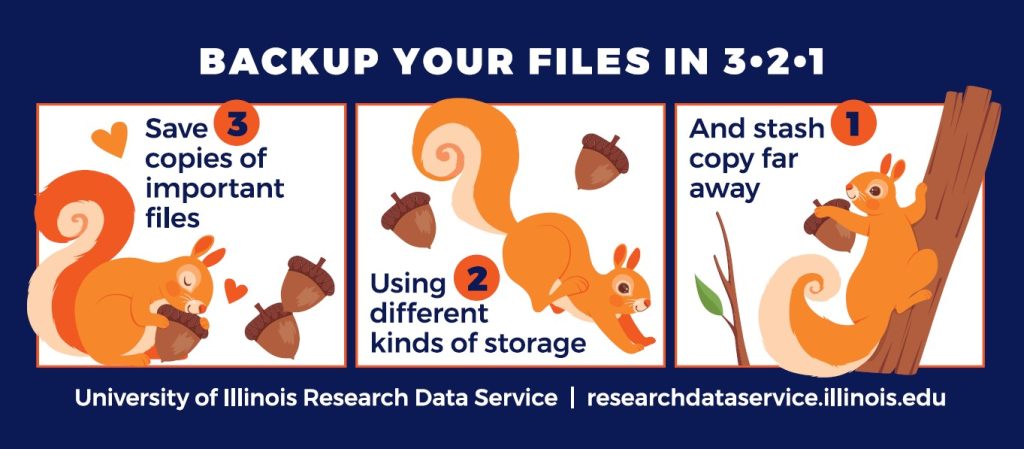
The 3-2-1 rule keeps files safe: 3 copies of important files (one original and two backups), on 2 different kinds of storage, with at least 1 of those copies far away from the other two.
No one’s backups are perfect, but make the extra effort with important and irreplaceable files like your original research data.
Files on your computer
Automatic backup software can save copies of files stored on your computer. Faculty and staff should talk to your departmental IT about backup options available through the University.
Files in the cloud
For important files stored in the cloud, it’s helpful to save backup copies on another cloud or on local storage media like your computer or an external drive. Yes, cloud storage providers do back up your files, but those backups are meant to protect you from storage failures. To protect yourself from your own mistakes, you should have a back up that you can control.
The automatic versioning provided by cloud platforms does offer some protection against mistakes, but that saves a limited number of versions, and you don’t want to find that you’ve lost your initial version, especially with data.
Backing up cloud files may mean manually downloading them and saving a copy elsewhere. That extra work is worth it for your most important files like your original research data. If you’re backing up cloud files to local storage, remember not to sync those local copies to your cloud files – you want an independent backup. Also, if you have backups stored on physical devices, don’t keep all of those devices in the same location.
Choosing File Formats
Have you ever tried to open a file only to find that you don’t have the right software? To make sure you can access your data over the long term, choose file formats that are open source, commonly used, supported by a range of software tools, not embedded with hidden stuff like macros, and that prevent against bit loss.
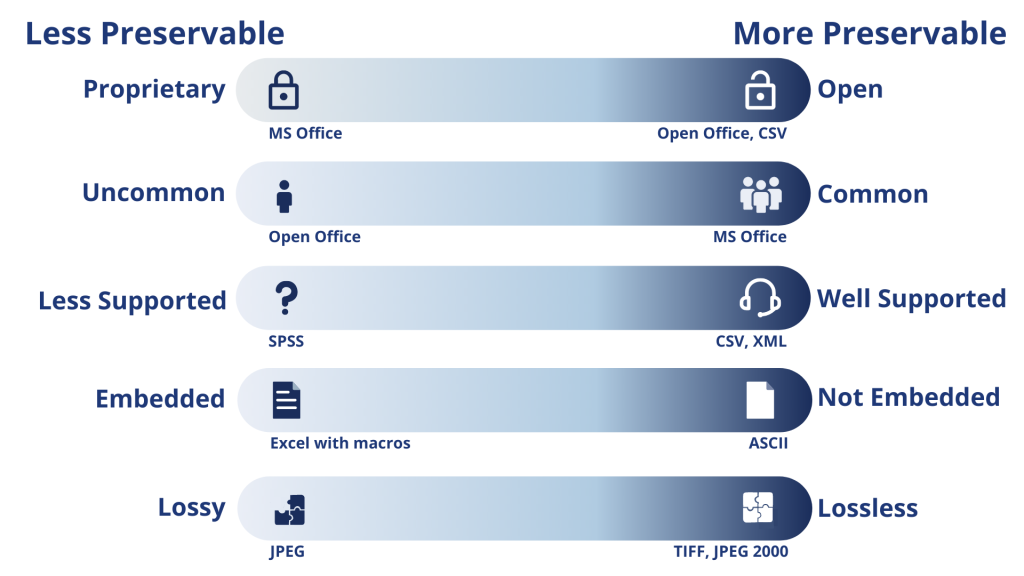
For lots of data, that means choosing a format like txt, csv, tsv, or tiff, but there are lots of other recommended formats as well. If your research software uses a proprietary format, see if you can also export a backup copy to a more preservable format.
Many cloud platforms offer their own file formats (e.g., Box Notes or Google Docs). These are very convenient while you’re working in the cloud, but can be hard to backup or transfer elsewhere. You may be better off with a more versatile file format, especially for your research data.
Who to Ask
For help setting up storage or backups, speak with your departmental IT or Research Tech Support. For help choosing a preservable file format or to request a workshop on best practices, contact the Research Data Service.